Understanding Flutter's Impeller Renderer
How Impeller improves Flutter's rendering performance and what developers need to know.
Your animation is perfectly smooth on your iPhone. You ship the build to QA, and a few hours later a screen recording arrives from a three-year-old Android phone. A blurred card flickers every time it slides into view. Someone in the team chat writes the sentence every Flutter developer eventually meets: "Is this an Impeller bug?"
You open the documentation to answer it and realize you cannot. You do not know which renderer that phone was running. You do not know whether it used Vulkan or OpenGL ES. You do not know how to switch Impeller off to compare, or whether switching it off is even possible on iOS. You do not know what information the Flutter team would need if you did decide to report it. Your widgets are clean and your state management is tidy, but the layer that turns all of that into pixels is a black box.
That black box is Impeller, and it is the most important piece of Flutter infrastructure that most Flutter developers have never been formally introduced to. It is the rendering engine that takes the drawing instructions produced by your widget tree and turns them into work for the GPU. On iOS it is the only renderer. On modern Android devices it is the default. Every animation, every blur, every gradient, and every custom shader in your app passes through it.
This handbook introduces Impeller properly. It starts from the basics: what a renderer is, why Flutter needs one, and what problem Impeller was designed to solve. It then explains how Impeller works, where it runs, and how Android decides between its Vulkan and OpenGL ES paths. From there it becomes practical: how to check which backend your app is actually using, how to turn Impeller on and off for comparison, how to write custom shaders that work with it, how to measure performance correctly, and how to diagnose rendering problems that are specific to Impeller. It closes with what the migration means for a real project, how to test across the backend matrix in CI, and a complete example app you can use as a rendering laboratory.
By the end, "is this an Impeller bug?" will be a question you can answer with evidence instead of a guess.
Prerequisites
You do not need any graphics programming background to follow this guide. Everything about GPUs, shaders, and rendering backends is explained as it appears. You should have the following in place.
Flutter proficiency at the app level. You should be comfortable building screens with widgets, using AnimationController, CustomPaint, and BackdropFilter, and running apps with flutter run. The examples use plain Flutter with no state management package.
A recent Flutter SDK. The official Impeller documentation page used for this guide reflects Flutter 3.44, and Flutter 3.47 is the current release at the time of writing. Run flutter upgrade and verify with flutter --version.
At least one physical Android device and one physical iOS device. Rendering behavior on emulators and simulators is not representative of real GPUs, and several diagnostic techniques in this guide only make sense on real hardware. If you can borrow an older, lower-end Android phone, you will learn more from it than from any other device.
Android command line tools. The adb command, which ships with the Android SDK platform tools, is used to read device logs and inspect devices.
Xcode for iOS debugging. The iOS section uses Xcode's GPU frame capture and Metal validation tools. You need a Mac to use them.
Flutter DevTools. It is included with your Flutter installation and opens from your IDE or with dart devtools.
What a Renderer Does in Flutter
Flutter Draws Everything Itself
To understand Impeller, start with one fact about Flutter that makes it different from most mobile frameworks. Flutter does not use the platform's native buttons, lists, or text fields. It draws every pixel of your interface itself. A Flutter ElevatedButton is not an iOS or Android button. It is a set of drawing instructions that Flutter's own engine converts into pixels on a canvas.
This is why Flutter apps look identical across platforms and why Flutter can animate anything. It is also why Flutter needs its own rendering engine. Something has to take the abstract instruction "draw a rounded rectangle with a gradient and a blurred shadow" and turn it into commands that a phone's graphics chip understands.
The Journey From Widget to Pixel
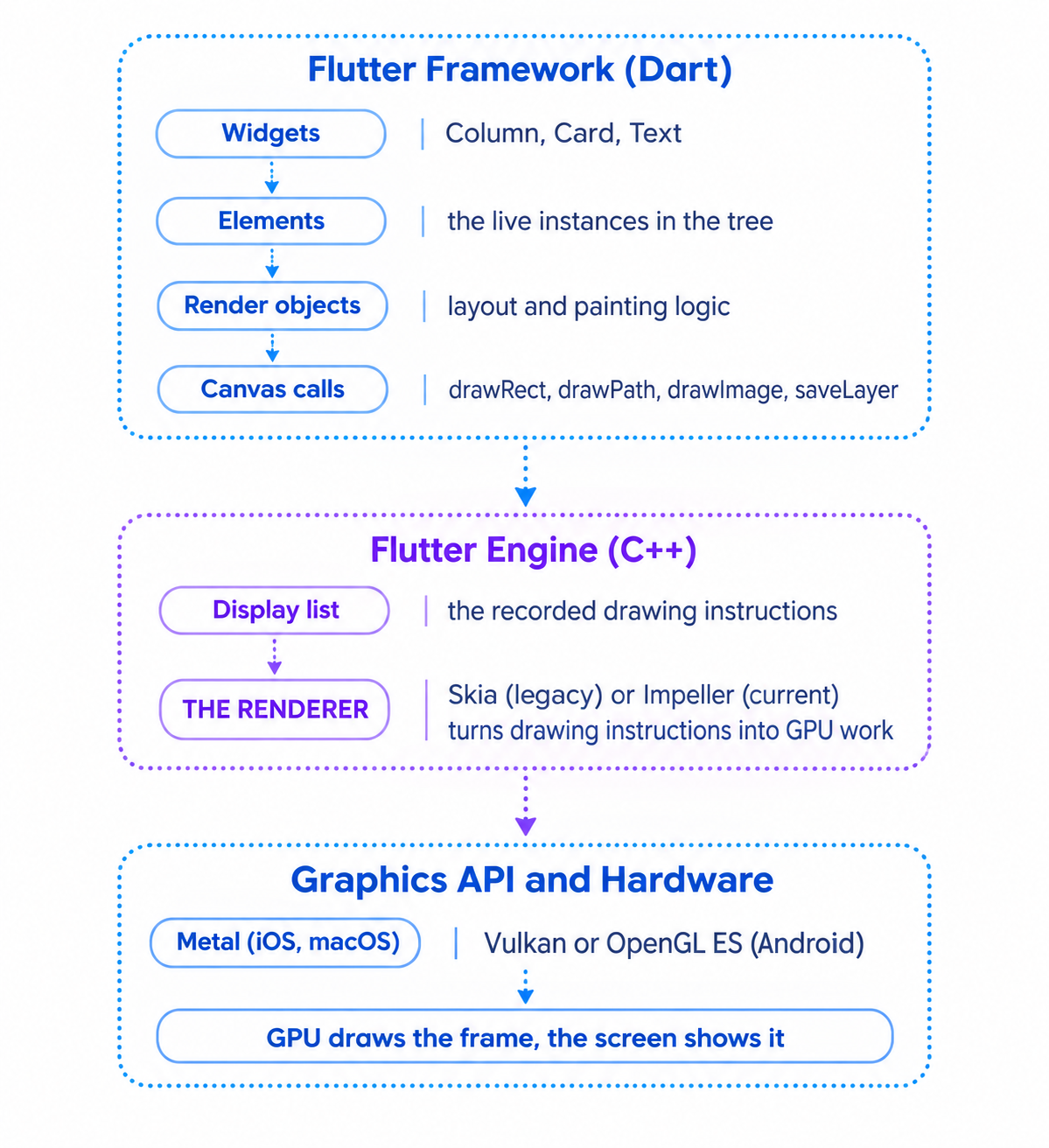
Your widgets and render objects live at the top and are written in Dart. The renderer sits in the middle, inside the Flutter engine, which is written in C++. Below the renderer is the platform's graphics API, which is the language the GPU driver speaks. The renderer is the translator in the middle, and the quality of that translation determines how smooth your animations feel.
For most of Flutter's history the translator was Skia, a general-purpose 2D graphics library. Impeller is the purpose-built replacement. Because the renderer sits below the widget layer, switching from Skia to Impeller required no changes to the Flutter framework API. Your widgets are the same. What changed is how the engine turns them into pixels.
The Problem Impeller Was Built to Solve
Shaders and the First-Run Stutter
A shader is a small program that runs on the GPU to decide the color of pixels. Every visual effect in your app depends on shaders: gradients, blurs, rounded clips, image filters, and the blending of translucent layers. The GPU cannot run a shader until it has been compiled into the specific machine instructions for that GPU.
Skia compiled the shaders it needed at runtime, at the moment your app first required them. The first time a particular effect appeared on screen, the app paused briefly while the shader compiled. Users saw this as a stutter at the start of an animation, and it happened once per shader per install. Developers call it shader compilation jank.
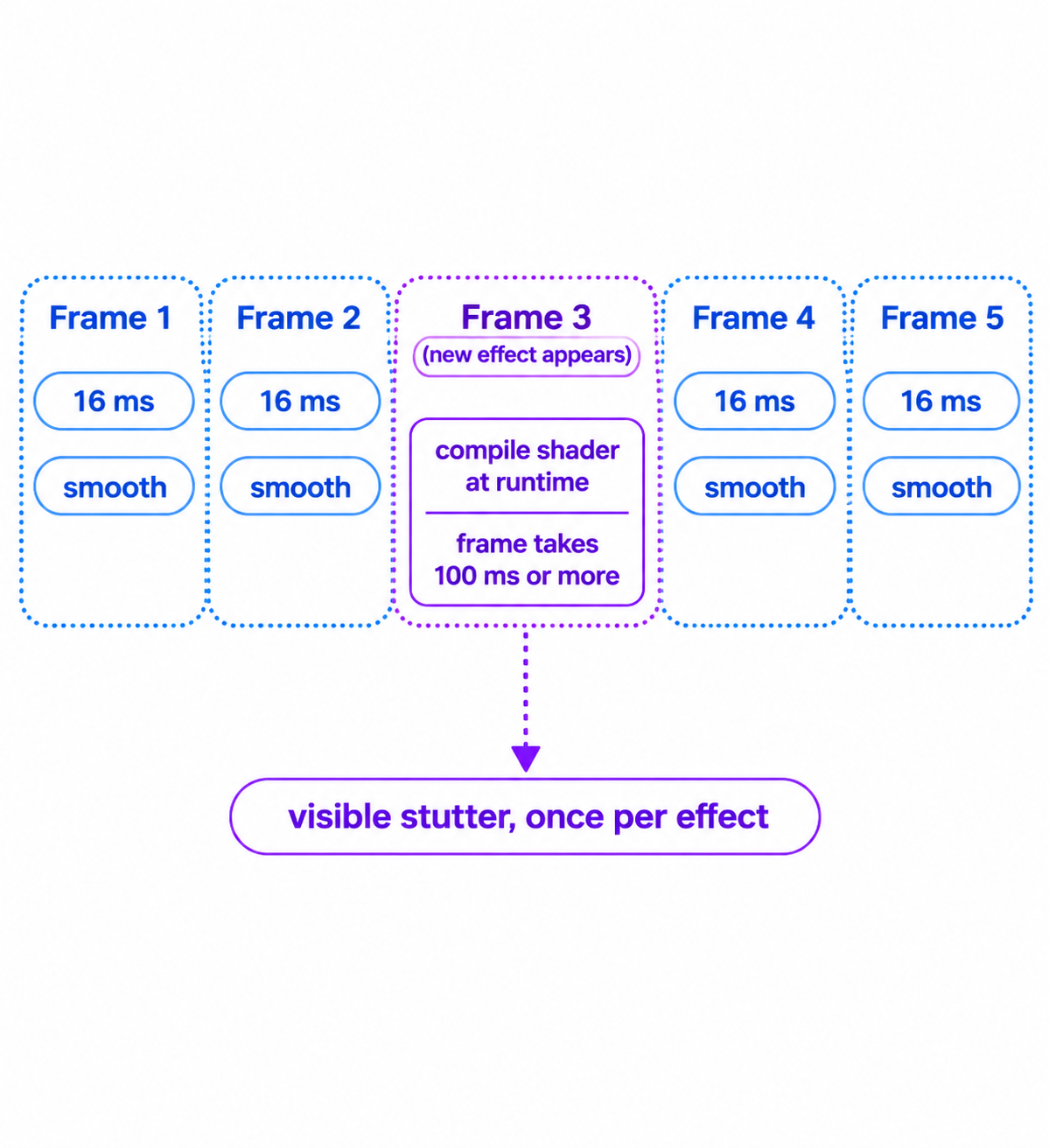
The stutter happens on the one frame where a never-before-seen effect arrives. After that, the compiled shader is cached and the effect is smooth. Because it only occurs on first use, the problem was notoriously hard to catch in development, where the same screens get opened repeatedly and every shader is already warm.
The Old Workaround
The Flutter team offered a workaround for years: record the shaders your app uses during a test session, bundle them with the app, and warm them up at startup. It looked like this.
flutter run --profile --cache-sksl
flutter build apk --bundle-sksl-path flutter_01.sksl.json
The first command runs the app in profile mode and caches the shaders it encounters, producing a JSON file when you exit. The second command builds the app with that file bundled, so the engine can compile those shaders at startup instead of mid-animation. The approach had real drawbacks. The shader set was device-specific, so a file captured on one phone did not fully cover another. Developers had to remember to regenerate it whenever their UI changed. And it only moved the cost, it did not remove it.
Impeller exists to eliminate this entire category of work. With Impeller, these commands are no longer part of your workflow, and the migration section later in this guide covers cleaning them out of your build scripts.
How Impeller Works
The Core Idea: Do the Expensive Work Before the App Runs
The official Flutter documentation describes Impeller as a new rendering runtime that precompiles a smaller, simpler set of shaders at engine build time so they do not compile at runtime. That sentence contains the whole idea. Instead of discovering which shaders are needed while the user is watching, Impeller's team decided in advance which shaders the engine will ever need, compiled them when the engine itself was built, and ships them ready to run.
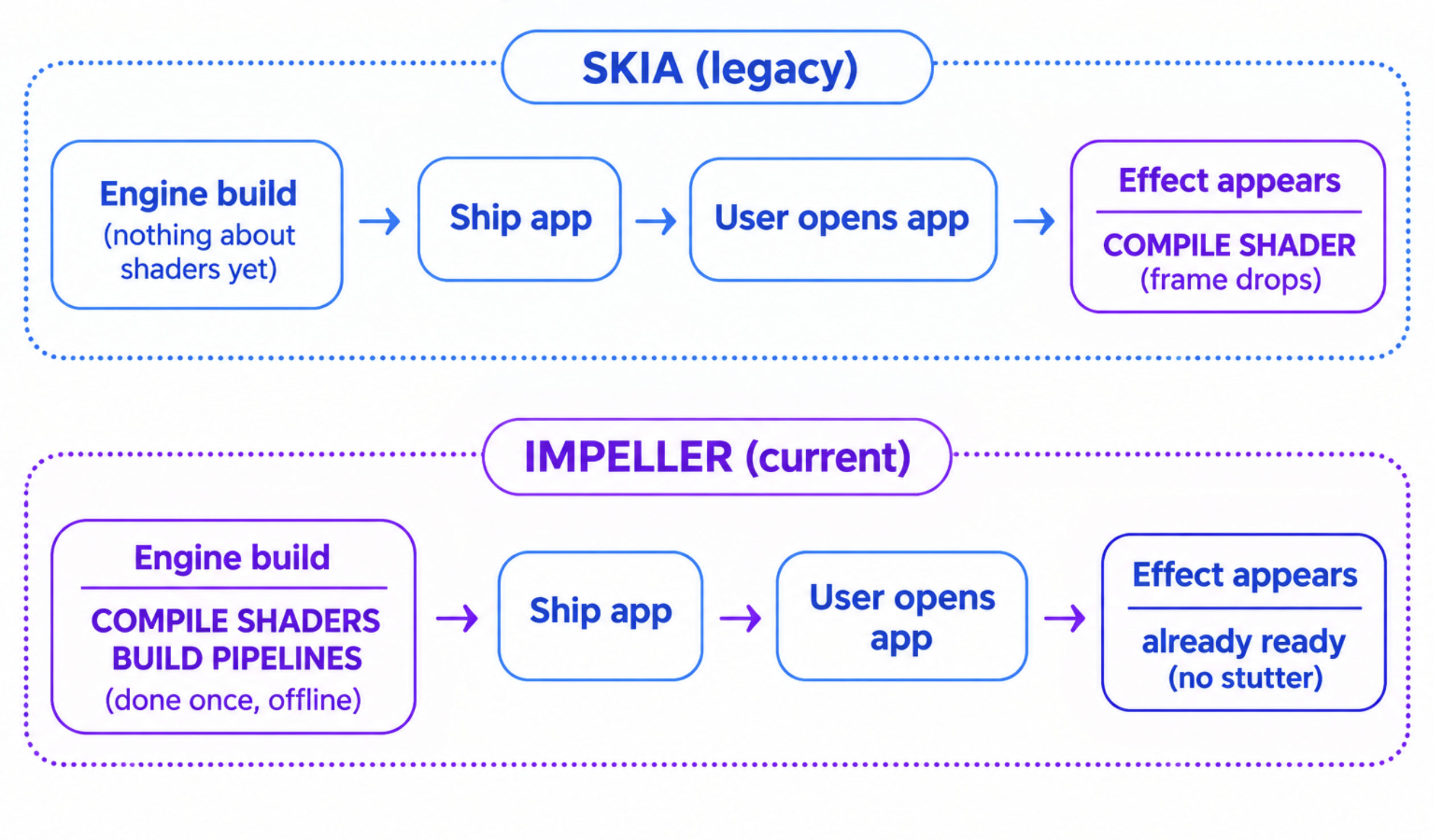
The diagram shows the same work happening at a completely different time. For Skia the compilation lands in the middle of a user interaction. For Impeller it lands during the engine build, long before any user is involved.
The Design Goals
The Flutter documentation lists a set of objectives that explain how Impeller is shaped.
Predictable performance is the headline goal. Impeller compiles all shaders and their reflection data offline at build time, builds all of its pipeline state objects upfront, and caches explicitly under the engine's control. A pipeline state object is a bundle that tells the GPU exactly how to draw something: which shaders, which blending, which formats. Building them upfront means no surprises mid-frame.
Portability means Impeller is not tied to one graphics API. Shaders are authored once and converted into backend-specific formats as needed, which is how the same renderer can target Metal on Apple platforms and Vulkan or OpenGL ES on Android.
Instrumentation means Impeller tags and labels its graphics resources, such as textures and buffers, which makes GPU debugging tools far more useful. It can also capture and persist animations to disk without affecting per-frame rendering performance.
Modern graphics APIs are used without being depended on. Impeller takes advantage of features in Metal and Vulkan but is designed so that it is not welded to them.
Concurrency means Impeller can distribute the workload of a single frame across multiple threads when it needs to.
Notice what is absent from that list. Nothing promises that every operation is cheaper. Impeller's promise is predictability: the cost of an effect is paid in a known place and does not surprise you at runtime. An expensive blur is still an expensive blur. It just no longer arrives with a compilation stutter attached.
Where Impeller Runs Today
The Platform Picture
Where Impeller applies depends on the platform, and this is the part of the topic where outdated advice is most common. The following reflects the official Flutter documentation, whose Impeller page was last updated in May 2026 against Flutter 3.44.
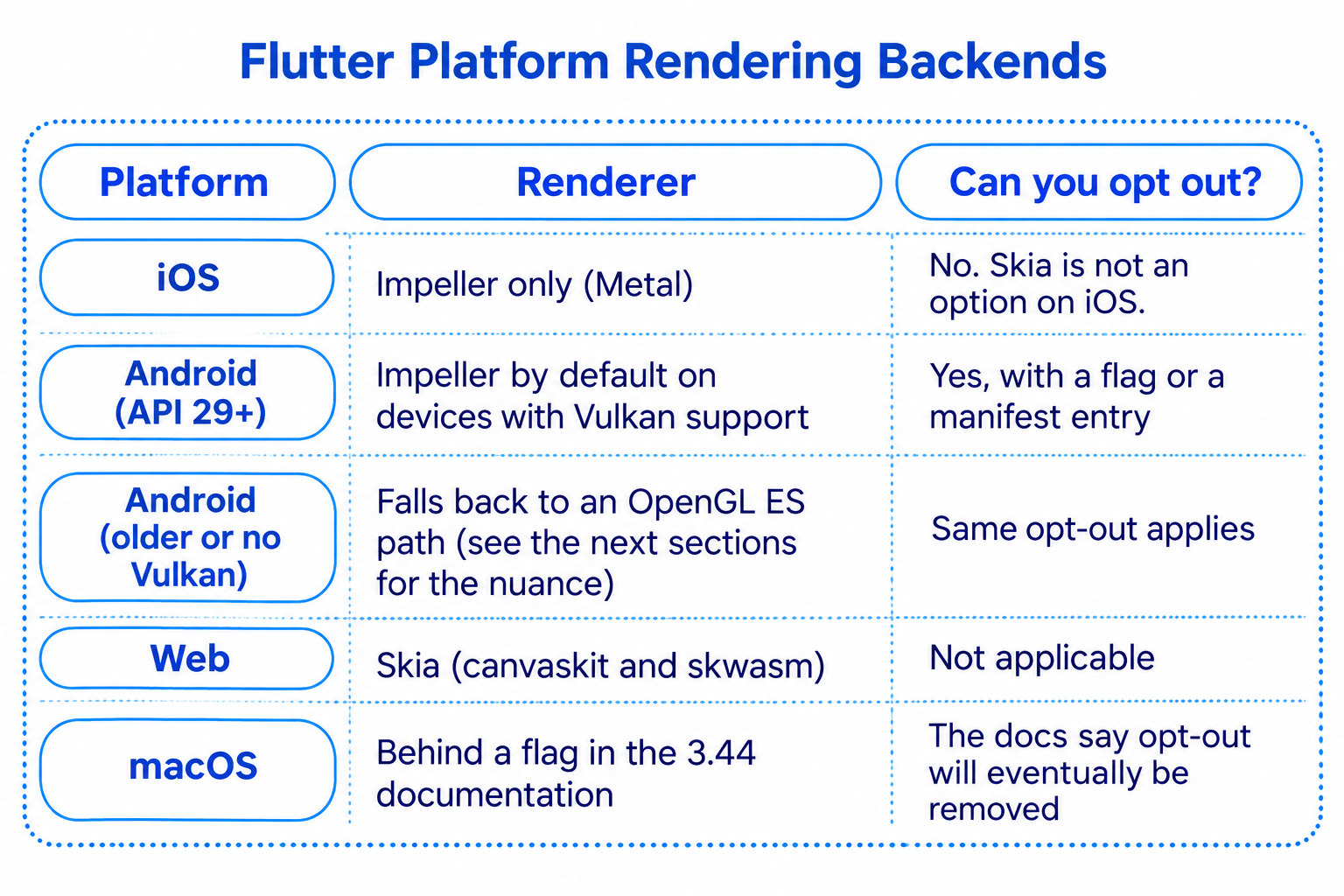
On iOS the situation is simple. Impeller is the only supported rendering engine, and there is no way to switch back to Skia. If you read older advice telling you to pass a flag to disable Impeller on iOS, it no longer applies.
On Android, Impeller is enabled by default on API level 29 and above. API level 29 is Android 10. Devices below that version, or devices that do not support Vulkan, take the fallback path described in the next section.
On the web, both of Flutter's web renderers, canvaskit and skwasm, currently use Skia. Impeller is not part of web rendering today.
For desktop, the 3.44 documentation describes macOS as available behind a flag and states that the ability to opt out will be removed in a future release. The Flutter 3.47 release notes describe further movement toward Impeller as the default on desktop platforms. Because this is the fastest-changing part of the picture, check the release notes for the exact Flutter version you ship before assuming a desktop behavior. The earlier freeCodeCamp article on the Flutter 3.47 changes covers the broader release.
How Android Chooses Between Vulkan and OpenGL ES
Two Backends for One Renderer
Android is the interesting platform because it has two backends. Vulkan is the modern, low-overhead graphics API on newer devices. OpenGL ES is the older, universally available API that runs on nearly everything, including devices that never received Vulkan drivers. Impeller's engine documentation states that it prefers Vulkan and falls back to OpenGL ES for compatibility, so that it can render on every Android version Flutter supports.
The decision happens at startup, on the device, based on what the hardware and operating system offer.
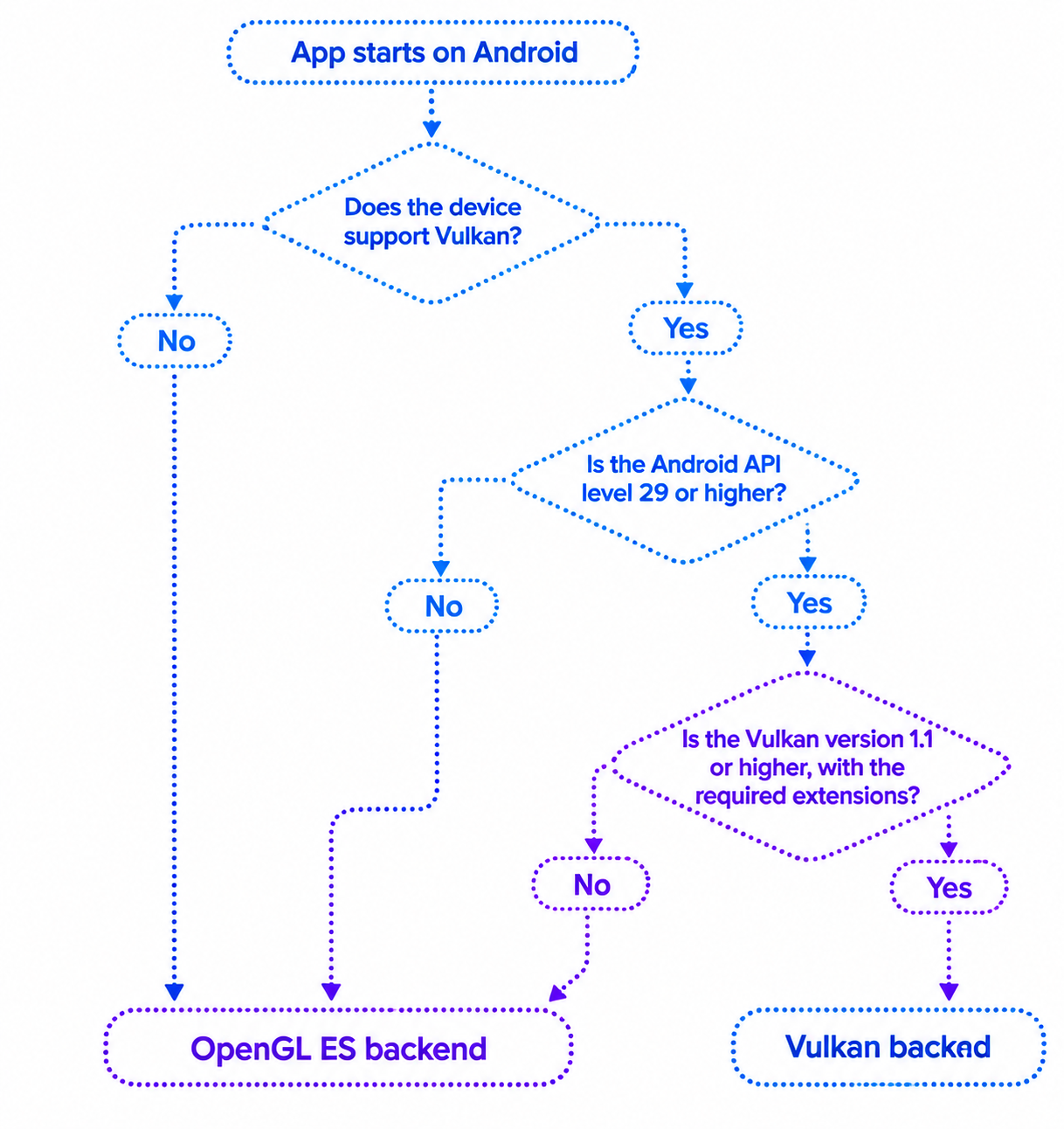
Three conditions must all be true for Vulkan to be chosen: the device supports it, the Android version is at least 10, and the Vulkan version is at least 1.1 with the extensions Impeller needs for platform interoperability. If any condition fails, the renderer takes the OpenGL ES path. Android 9 and older always take it, because Android 10 is where efficient hardware buffer support arrived, which Impeller relies on for features such as platform views.
The engine documentation notes that very few devices that meet the Android 10 requirement should fail the extension check, because those extensions are close to universal on newer devices. In practice the devices that land on OpenGL ES are older phones, plus some low-cost or RAM-constrained configurations, such as devices with a 64-bit kernel running a 32-bit user space.
A Documentation Nuance Worth Knowing
There is a subtlety here that matters if you are writing about or debugging this behavior. The Flutter documentation page for Impeller describes the fallback for older or non-Vulkan devices in terms of the legacy OpenGL renderer. The engine's own Android documentation describes an Impeller OpenGL ES backend, and carries a note that during a preview period Flutter would fall back to the Skia OpenGL ES backend while the team focused on production readiness of the Impeller one.
Field reports show the practical state of things changes between releases. A public Flutter issue with logs from Flutter 3.38.3 shows an Android 10 device printing a line saying it is using the Impeller OpenGLES backend after Vulkan could not be used. The reliable way to know what your app does on a given device with a given Flutter version is not to read documentation. It is to read the device log, which the next section shows how to do.
Checking Which Backend Your App Uses
The Log Line
When an Impeller-enabled app starts, the engine prints which backend it picked. Reading that line is the single most valuable Impeller skill, because it replaces guessing with evidence. Run your app on a device and watch the console, or filter the Android log directly.
flutter run --profile -d <device-id>
adb logcat | grep -i impeller
The first command runs your app in profile mode on a specific device. Use flutter devices to list device identifiers. Profile mode is the right default for rendering investigations because debug mode adds overhead that distorts what you see. The second command streams the Android system log and keeps only lines mentioning Impeller, which cuts through the very large volume of unrelated system output.
You will see one of the following lines, depending on the backend.
[IMPORTANT:flutter/shell/platform/android/android_context_vk_impeller.cc(62)] Using the Impeller rendering backend (Vulkan).
[IMPORTANT:flutter/shell/platform/android/android_context_gl_impeller.cc(104)] Using the Impeller rendering backend (OpenGLES).
The prefix in square brackets is the log severity, the source file, and the line in the engine that printed the message. The part that matters is the end of the line, which names the backend: Vulkan or OpenGLES. On iOS the equivalent line names Metal. The exact line numbers and file paths change between engine versions, so match on the sentence rather than the numbers.
If you see a message stating that the application opted out of Impeller, then the app is running Skia on that device because of a flag or a manifest entry. That message is covered in the next section.
Make this a habit. Whenever a rendering report arrives from QA, the first question to ask is which device, which operating system version, and what the backend log line said on that device. Those three facts split most rendering mysteries in half.
Turning Impeller On and Off
Why Turn It Off at All
Switching Impeller off is a diagnostic technique, not a configuration to ship. If a visual glitch appears with Impeller and vanishes without it, you have located the problem in the renderer instead of in your widget code. That is valuable evidence, both for your own debugging and for a bug report. This comparison is only possible where Skia is still available, which in practice means Android.
Disabling for a Single Debug Run
flutter run --no-enable-impeller
This runs the app on Android with Impeller disabled for that session only. Nothing in your project changes. When the session ends, the next flutter run is back to the default. This is the safest way to A/B test, because you cannot forget to undo it.
Disabling in the Android Manifest
<application
    android:label="my_app"
    android:icon="@mipmap/ic_launcher">

    <meta-data
        android:name="io.flutter.embedding.android.EnableImpeller"
        android:value="false" />

    <activity android:name=".MainActivity" ... />
</application>
This entry goes inside the application tag of android/app/src/main/AndroidManifest.xml. It disables Impeller for installed builds, not just a debug session. The meta-data element is a key and value pair that the Flutter embedding reads at startup. The key is io.flutter.embedding.android.EnableImpeller, and a value of false opts the app out.
When an app has opted out, the engine says so in its log, naming both the --no-enable-impeller flag and this manifest entry as the possible causes. If you ever find an app unexpectedly running Skia, search the log for that message and then search the project for the manifest key. A forgotten opt-out left over from an old debugging session is a common reason a team is surprised by rendering behavior.
Treat a manifest opt-out as a temporary bridge while you wait for a bug fix, never as a destination. The documentation is explicit that the legacy path is on its way out, and on macOS it states the opt-out will be removed in a future release.
Enabling on macOS
<key>FLTEnableImpeller</key>
<true />
On macOS, per the 3.44 documentation, Impeller was enabled by adding this key and value under the top-level dict tag in the app's Info.plist file. For a debug run, the equivalent is passing --enable-impeller to flutter run. Because desktop behavior is moving quickly, confirm in your Flutter version's release notes whether this is still required or has become the default.
What You Cannot Do on iOS
There is no flag and no plist entry that returns an iOS app to Skia. If a rendering problem appears on iOS, you cannot use the disable-and-compare technique. Debugging on iOS relies on Xcode's graphics tools and on reducing the problem to a minimal reproduction, both covered later.
What Changes in Your Code
Almost Nothing
This is the reassuring part. Impeller sits below the framework, so the Dart code you write is the same. Widgets, animations, CustomPainter, BackdropFilter, and ClipRRect all behave as before. The migration to Impeller is not a rewrite and does not require a package.
What does change is the surrounding workflow and a few categories of code that interact closely with the renderer.
Shader warm-up code and the bundled SkSL files described earlier are no longer part of the picture. If your build scripts pass --bundle-sksl-path, they are carrying dead weight.
Custom fragment shaders, which you write in GLSL and load with FragmentProgram, are compiled at build time and must be valid for Impeller's shader pipeline. This is covered in the next section.
Plugins that render through platform textures, such as camera previews, video, and map views, interact with the renderer's backend. The engine documentation notes particular care around textures backed by Android's SurfaceTexture on the Vulkan path. If a plugin that draws external content misbehaves on only some devices, the backend is a good early suspect.
Finally, anything that was visually tuned around Skia quirks may look slightly different. Differences in anti-aliasing, blur appearance, or gradient banding are the kind of thing a visual review pass should look for.
Writing Custom Shaders for Impeller
Why Custom Shaders Matter Here
Custom shaders are where Impeller's build-time design is most visible to you. You write a small GLSL file, register it in pubspec.yaml, and Flutter's tooling compiles it into the format each backend needs when you build the app. If the shader is invalid, you find out at build time rather than on a user's phone.
Registering the Shader
flutter:
  shaders:
    - shaders/wave.frag
The shaders key under flutter lists fragment shader source files. When you build, Flutter's shader compiler processes each listed file and bundles the compiled result as an asset. The path is relative to the project root. Without this entry the shader file is just a text file that the app cannot load.
Writing the Fragment Shader
#version 460 core

precision mediump float;

#include <flutter/runtime_effect.glsl>

uniform vec2 uSize;
uniform float uTime;

out vec4 fragColor;

void main() {
  vec2 uv = FlutterFragCoord().xy / uSize;
  float wave = sin(uv.x * 10.0 + uTime * 2.0) * 0.5 + 0.5;
  vec3 colorA = vec3(0.10, 0.45, 0.95);
  vec3 colorB = vec3(0.95, 0.35, 0.55);
  vec3 color = mix(colorA, colorB, mix(uv.y, wave, 0.5));
  fragColor = vec4(color, 1.0);
}
#version 460 core declares the GLSL version Flutter's shader compiler expects. precision mediump float sets the default floating-point precision, which matters for the OpenGL ES path where precision qualifiers are required. #include <flutter/runtime_effect.glsl> pulls in Flutter's helper definitions, most importantly FlutterFragCoord, which returns the pixel position being shaded in a way that behaves consistently across backends. Do not use the built-in gl_FragCoord, because its coordinate conventions differ between graphics APIs.
The two uniform lines declare the inputs Dart will provide: the size of the area being painted and the elapsed time. Uniform order matters, because Dart sets them by index. uSize is a two-component vector and occupies indexes 0 and 1. uTime is a single float at index 2. The output is a single out vec4 fragColor, the final color of the pixel.
The body normalizes the pixel position into the range zero to one, computes a sine wave that moves with time, and blends two colors using that wave. It is a deliberately simple effect so the focus stays on the plumbing.
Keep shaders modest. The Impeller documentation includes guidance on writing efficient shaders and explains how Impeller works around the lack of uniform buffers in OpenGL ES 2.0. If your shader will run on devices that take the OpenGL ES path, test it on one.
Loading and Painting With the Shader
import 'dart:ui' as ui;

import 'package:flutter/material.dart';

class WavePainter extends CustomPainter {
  WavePainter({required this.shader, required this.time});

  final ui.FragmentShader shader;
  final double time;

  @override
  void paint(Canvas canvas, Size size) {
    shader
      ..setFloat(0, size.width)
      ..setFloat(1, size.height)
      ..setFloat(2, time);

    canvas.drawRect(Offset.zero & size, Paint()..shader = shader);
  }

  @override
  bool shouldRepaint(WavePainter oldDelegate) => oldDelegate.time != time;
}

Future<ui.FragmentShader> loadWaveShader() async {
  final program = await ui.FragmentProgram.fromAsset('shaders/wave.frag');
  return program.fragmentShader();
}
FragmentProgram.fromAsset loads the compiled shader asset by the same path you listed in pubspec.yaml. It is asynchronous, so load it once, early, and keep the result. program.fragmentShader() creates a shader instance that a Paint can use.
Inside paint, the three setFloat calls assign the uniforms by index: width at 0, height at 1, and time at 2, matching the declaration order in the GLSL file. Getting these indexes wrong is the most common reason a custom shader renders as a flat color. Paint()..shader = shader then fills the rectangle using the shader.
shouldRepaint returns true only when time changes, so the painter repaints when the animation ticks and not otherwise. The FragmentShader is stored on the painter instead of being recreated each frame, which avoids needless allocation inside a hot path.
Measuring Performance the Right Way
Why Debug Mode Lies
Debug mode runs extra checks, disables many optimizations, and compiles Dart in a way that is meant for fast iteration. Measuring rendering performance in debug mode measures all of that overhead. Profile mode keeps the performance characteristics of a release build while still allowing DevTools to connect. The Flutter performance guidance is to profile on a physical device, because emulators and simulators do not reflect real hardware.
flutter run --profile -d <device-id>
This builds and launches in profile mode on the chosen device. Use it for every rendering investigation in this guide.
Reading the Performance Overlay
MaterialApp(
  showPerformanceOverlay: true,
  home: const HomeScreen(),
)
Setting showPerformanceOverlay to true draws two graphs at the top of the screen. Each bar is one frame. The top graph shows the raster thread and the bottom graph shows the UI thread. A bar that crosses the target line means that frame missed its deadline.
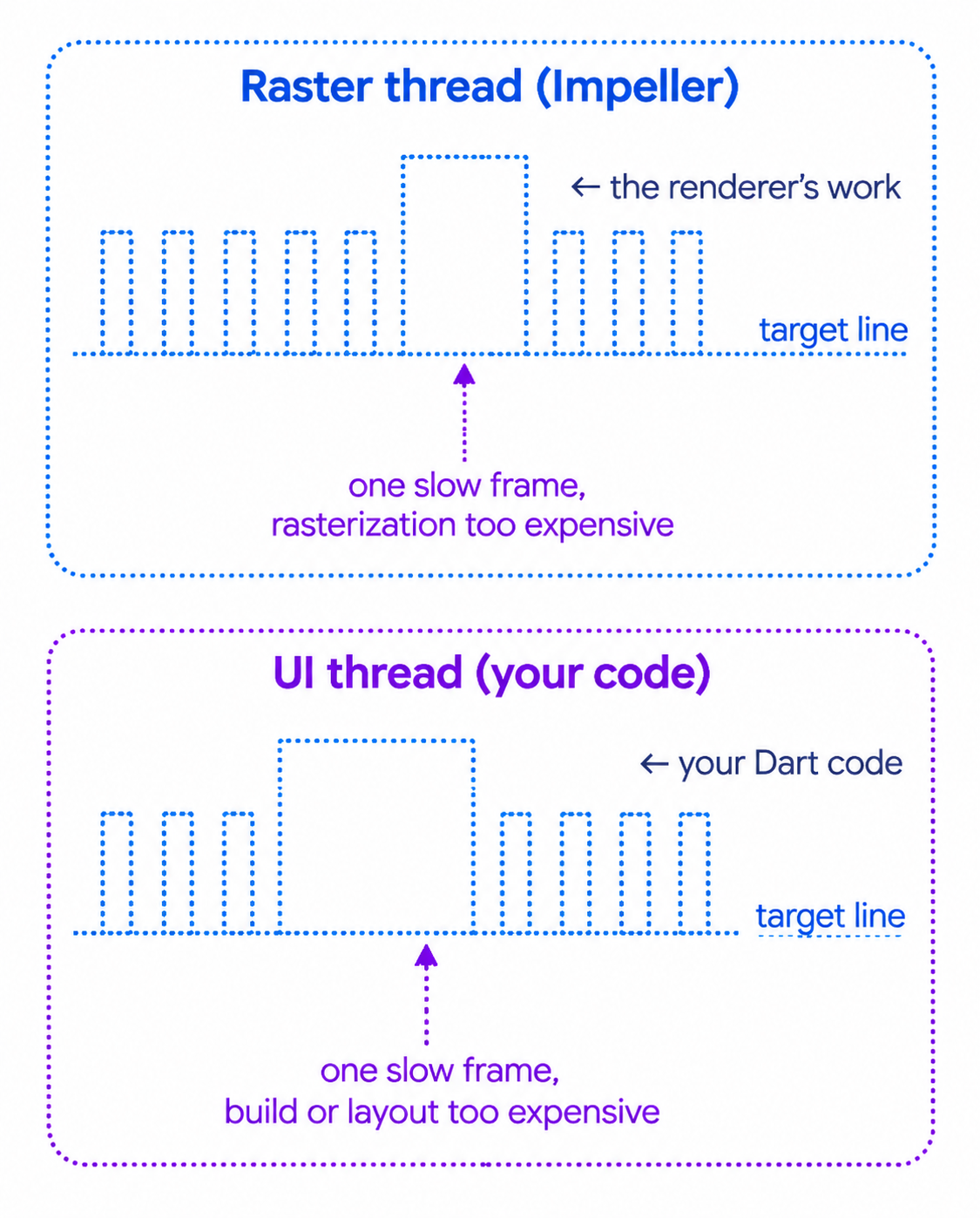
The distinction between the two threads is the diagnostic value. The UI thread runs your Dart code: building widgets, laying out, and recording drawing instructions. The raster thread is where the renderer turns those instructions into GPU work. If the raster graph is red and the UI graph is green, your Dart code is fine and the cost is in drawing, which is where Impeller and your choice of effects matter. If the UI graph is red, no renderer change will help, because the problem is in your widgets.
For a frame-by-frame view with timings, open the Performance view in Flutter DevTools while the app runs in profile mode.
Diagnosing Impeller-Specific Rendering Issues
Start With a Symptom, End With Evidence
Rendering problems come in a few recognizable shapes. Visual glitches are wrong pixels: missing content, flickering, tearing, incorrect blending, or artifacts around blurs and clips. Performance regressions are frames that take too long, usually seen as jank. Crashes are rarer but often tied to a specific device. And device-specific behavior is any of the above that appears on some phones and not others, which is the shape that most often points to the backend.
A useful real-world example comes from a public Flutter issue. A developer reported that rendering broke on one particular Android 10 device with a PowerVR GPU on Flutter 3.38.3, while the same app rendered correctly on Flutter 3.27.4. The device log showed the Vulkan backend initializing and then the OpenGLES backend being used. The reporter's own observation was that the breakage occurred only when the fallback from Vulkan to OpenGL ES happened. Everything in that report, the exact device, the GPU, the Flutter versions on both sides of the regression, and the log lines, is what made it diagnosable. That is the standard to aim for in your own investigations.
The Diagnosis Flow
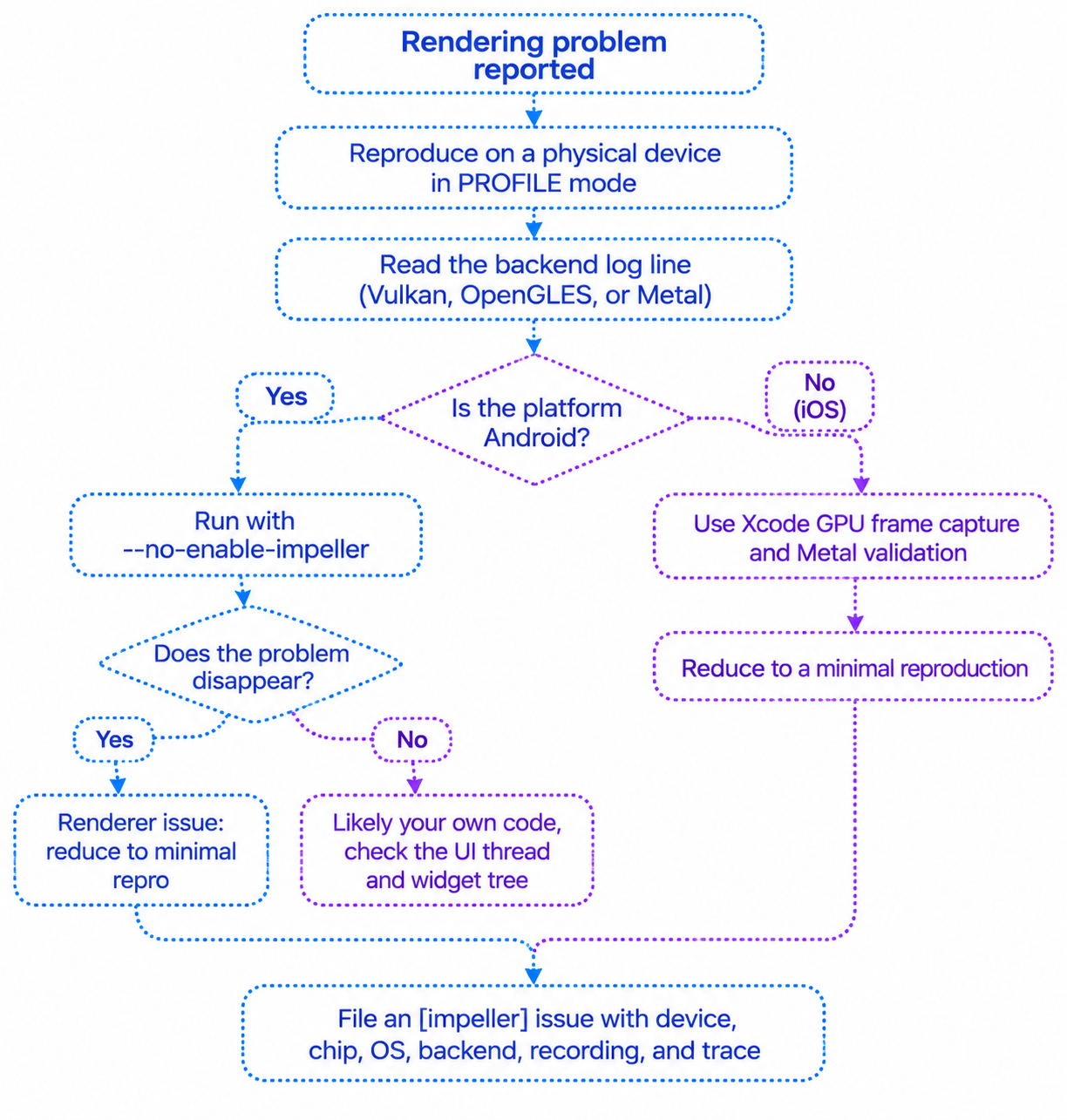
The flow forces the two questions that matter most. First, is this tied to a specific backend or device? The log line answers that. Second, does the problem exist without Impeller? On Android the disable flag answers that. If the problem remains with Skia, the renderer is not the cause, and you will save yourself and the Flutter team a misdirected bug report.
Bisecting the Widget Tree Without Editing Code
When a glitch involves a complex screen, the fastest way to find the responsible effect is to switch candidate effects on and off in isolation. Compile-time environment flags let you do that without editing code between runs.
const bool reproBlur = bool.fromEnvironment('REPRO_BLUR');
const bool reproClip = bool.fromEnvironment('REPRO_CLIP');
const bool reproOpacity = bool.fromEnvironment('REPRO_OPACITY');

class SuspectCard extends StatelessWidget {
  const SuspectCard({super.key, required this.child});

  final Widget child;

  @override
  Widget build(BuildContext context) {
    Widget result = child;

    if (reproClip) {
      result = ClipRRect(borderRadius: BorderRadius.circular(20), child: result);
    }
    if (reproOpacity) {
      result = Opacity(opacity: 0.8, child: result);
    }
    if (reproBlur) {
      result = ClipRect(
        child: BackdropFilter(
          filter: ui.ImageFilter.blur(sigmaX: 12, sigmaY: 12),
          child: result,
        ),
      );
    }
    return result;
  }
}
flutter run --profile -d <device-id> --dart-define=REPRO_BLUR=true
flutter run --profile -d <device-id> --dart-define=REPRO_CLIP=true
bool.fromEnvironment reads a value passed on the command line with --dart-define at compile time. Each constant defaults to false when not provided. SuspectCard wraps its child in only the effects you enabled, so you can run the app once per effect and watch which one reproduces the glitch.
This is bisection applied to rendering. If the flicker appears only with REPRO_BLUR, you have narrowed a whole screen down to a blur applied through BackdropFilter, and a minimal reproduction becomes a tiny app with just that. If it appears only when two flags are combined, that is also valuable information, because it points at an interaction between effects. Combine flags in one command by repeating --dart-define.
Debugging on Android
Collecting the Facts
Device-specific problems demand device-specific facts. Collect them before you start theorizing.
adb shell getprop ro.build.version.sdk
adb shell getprop ro.product.model
adb shell dumpsys SurfaceFlinger | grep -i GLES
The first command prints the Android API level, which tells you whether the device is below the API 29 threshold for Vulkan. The second prints the device model, which belongs in every bug report. The third searches the display service's dump for the GPU description, which typically includes the vendor, renderer name, and OpenGL ES version. The exact output varies by device and Android version, but on most phones you get the GPU chip family, and that detail is often decisive. Different GPU vendors have different driver quirks, and the public issue discussed earlier was tied to a specific GPU family.
Reading Validation Messages
Debug builds of Impeller can report validation failures, which are the renderer telling you it detected an invalid operation before the GPU got involved. These show up in the log as error lines with a recognizable pattern.
[ERROR:flutter/impeller/renderer/backend/gles/texture_gles.cc(NNN)] Break on 'ImpellerValidationBreak' to inspect point of failure: <reason>
The bracketed prefix gives the severity and the engine source file where the validation failed, which tells you the area involved. Here the path shows the OpenGL ES backend and its texture code. The reason at the end is a short description such as an invalid texture descriptor. The phrase about ImpellerValidationBreak is a hint for engine developers: if you attach a native debugger, setting a breakpoint on that symbol stops execution at the exact point of failure. For an app developer, the practical value is different. The file path and reason text are precisely the details worth copying into a bug report, because they tell the Flutter team which subsystem rejected what.
Validation behavior in Vulkan debug builds has been evolving, with the engine team working toward loading validation layers by default in debug runtime modes. If you do not see validation messages you expect, check the engine documentation for the Flutter version you are on.
Testing Both Paths Deliberately
Because Android has two paths, deliberately exercise both. A modern phone exercises Vulkan. To exercise OpenGL ES you need a device or emulator that lands on that path, such as one running Android 9 or lower, where the engine documentation states OpenGL is used unconditionally. Keep an older, low-end phone in your device lab for exactly this reason. Many Impeller-specific reports in the wild are devices on the fallback path that nobody on the original team owned.
Debugging on iOS
On iOS there is one renderer and one backend, Metal, so the question shifts from "which backend" to "what exactly is the GPU being asked to do." Xcode's tools answer that.
GPU Frame Capture
With your device connected and the app running from Xcode, use Xcode's Capture GPU Frame action in the debug bar. This freezes one rendered frame and shows every draw call, every texture, and every pipeline state used to make it. Because Impeller labels its graphics resources, as its design goals promise, the captured frame is far easier to read than an unlabeled one. You can step through draw calls and see the frame being built up, which makes a missing or misplaced element traceable to the exact operation that drew it, or failed to.
The Flutter documentation links to dedicated guides for setting up Xcode for Metal GPU frame captures and for learning to read them. Read those before your first capture, because the capture tool has some setup requirements specific to Flutter apps.
Metal API Validation
In your Xcode scheme's run diagnostics, you can enable Metal API Validation. This makes Metal check every call your app, and by extension Impeller, makes to the GPU and report misuse as errors. It slows rendering, so use it for investigation only. If Metal validation reports a problem during the glitch, the message names the failing call, which is the strongest possible evidence for a bug report.
Reducing to a Minimal Reproduction
Since you cannot disable Impeller on iOS to compare, minimal reproduction is your main tool there. Create a new empty Flutter project, add only the widget that misbehaves with hardcoded data, and run it on the same device. If the glitch survives, you have a small, shareable case. If it disappears, the cause is something else in your app interacting with that widget, and you can add the surrounding pieces back one at a time until it returns.
Filing a Useful Impeller Issue
When you have evidence that the renderer is at fault, report it. The Flutter team's guidance is to file the issue in the Flutter GitHub tracker, prefix the title with [Impeller], and include a small reproducible test case. The documentation also lists specific information to include: the device you are running on including its chip information, screenshots or recordings of the visible problem, and an export of the performance trace, zipped and attached.
A good report is written so that someone who has never seen your app can reproduce the problem in minutes. This template covers everything that matters.
Title: [Impeller] Blurred card flickers on slide-in, Android 10, PowerVR GPU

Environment
- Device: <model>
- Chip and GPU: <from dumpsys SurfaceFlinger>
- Android version and API level: <for example Android 10, API 29>
- Flutter version: <output of flutter --version>
- Backend from log: <Vulkan, OpenGLES, or Metal>

Behavior
- Expected: the card slides in with a stable blurred background.
- Actual: the blurred region flickers for the first second of the animation.

Comparison
- With --no-enable-impeller: <does the problem occur?>
- With Flutter <earlier version>: <does the problem occur?>

Reproduction
1. Create a new project with the attached main.dart.
2. Run flutter run --profile on the device above.
3. Tap the button and watch the card.

Attachments
- Screen recording
- Zipped performance trace
- Relevant log lines including any ImpellerValidationBreak messages
The title carries the [Impeller] prefix the team asks for, plus the symptom, the OS, and the GPU family so the report is searchable. The environment block holds the facts you collected in the previous sections, with the backend log line included because it is the fact most often missing from reports. The comparison block records the results of your diagnosis flow: the disable flag result and the version comparison. A regression between two Flutter versions is among the most valuable pieces of information you can give, because it lets engineers bisect to the exact change. The reproduction block is short and numbered so that anyone can follow it. The attachments cover the recording, the trace, and the log lines.
Migration Guide: What the Move to Impeller Means Practically
Most Apps Have Little to Do
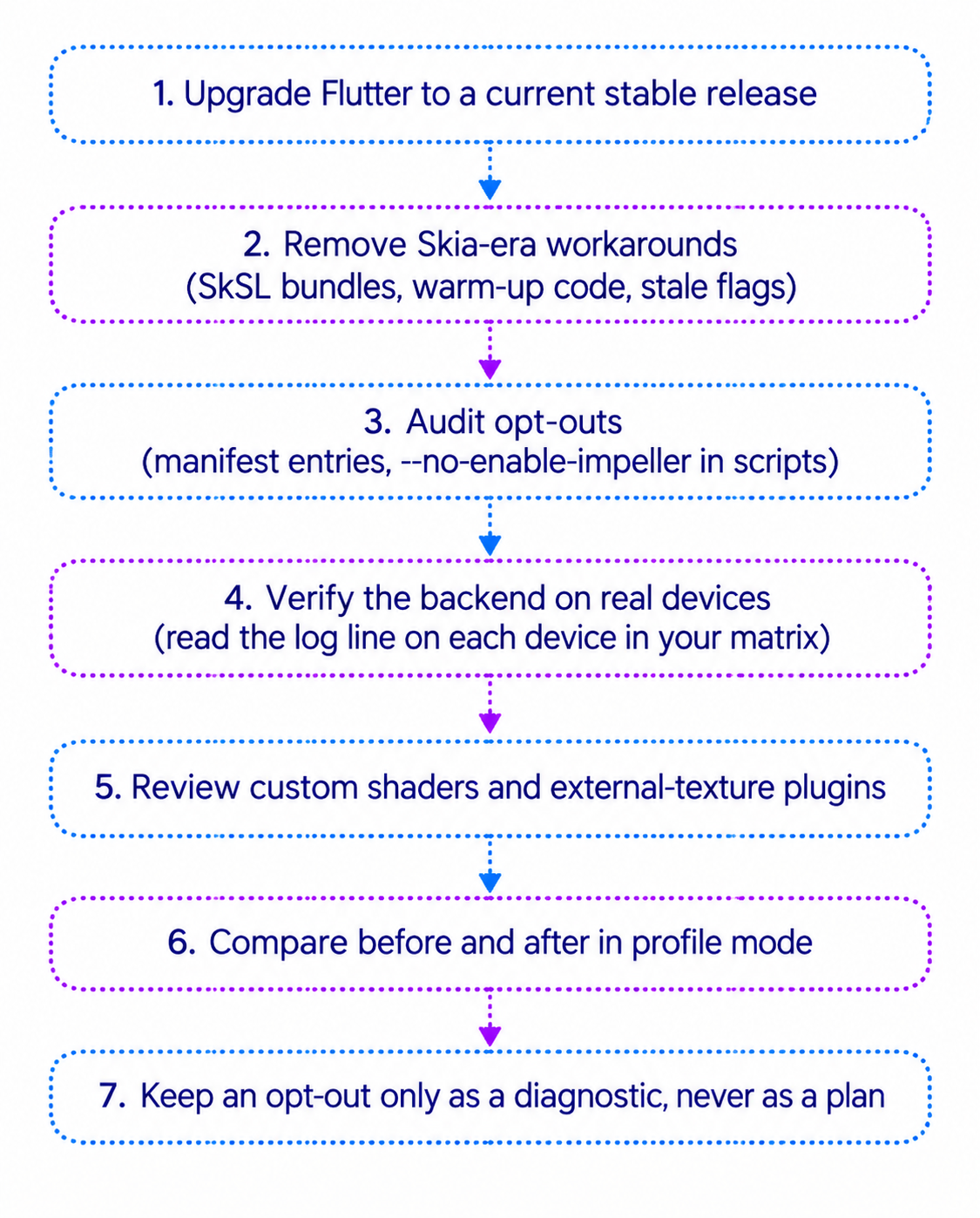
Since Impeller is already the only renderer on iOS and the default on supported Android devices, an app on a current Flutter version has typically migrated already without any code changes. The practical work is about cleaning up the past and verifying the present.
Removing Skia-Era Workarounds
# Before: build script with SkSL warm-up
flutter build apk --release --bundle-sksl-path flutter_01.sksl.json

# After: nothing special is needed
flutter build apk --release
The bundled SkSL file existed solely to pre-warm Skia's runtime shader compilation. Impeller has no such stage, so the flag does nothing useful, and the JSON file it points to is obsolete and can be deleted from the repository. If your CI pipeline or Fastlane lanes include this flag, remove it and the step that regenerates the file. Smaller, simpler build commands are one of the quiet benefits of the migration.
Auditing Opt-Outs
Search your project for the two ways an app can have opted out of Impeller: the --no-enable-impeller flag in scripts, run configurations, and documentation, and the io.flutter.embedding.android.EnableImpeller key in AndroidManifest.xml. Every hit should be either removed or have a recorded reason and an owner. An opt-out with no owner is how a team ends up shipping the legacy path without knowing it.
Verifying on Real Devices
Build a small device matrix and write down the log line from each device. A reasonable minimum is a recent iPhone, a recent Android phone that takes the Vulkan path, and an older or low-end Android phone that takes the OpenGL ES path. Recording which backend each device uses turns the matrix into a living reference that you can consult during bug triage.
Reviewing Visual Differences
Run through your app's most visual screens on each device looking for differences from how they looked before: blur strength and edge quality, gradient smoothness, shadow appearance, and anti-aliasing on clipped shapes. Most apps will see no meaningful difference, but a design team would rather know about small differences from you than find them after release.
Testing Across the Backend Matrix in CI
Because the Android backend depends on the device, your tests should cover more than one Android configuration. Emulators let you do this cheaply in CI.
name: Renderer matrix

on:
  pull_request:

jobs:
  integration:
    runs-on: ubuntu-latest
    strategy:
      matrix:
        api-level: [28, 34]

    steps:
      - uses: actions/checkout@v4

      - name: Enable KVM
        run: |
          echo 'KERNEL=="kvm", GROUP="kvm", MODE="0666", OPTIONS+="static_node=kvm"' | sudo tee /etc/udev/rules.d/99-kvm4all.rules
          sudo udevadm control --reload-rules
          sudo udevadm trigger --name-match=kvm

      - uses: subosito/flutter-action@v2
        with:
          channel: stable
          cache: true

      - run: flutter pub get

      - uses: reactivecircus/android-emulator-runner@v2
        with:
          api-level: ${{ matrix.api-level }}
          arch: x86_64
          script: |
            flutter test integration_test
            adb logcat -d | grep -i "Using the Impeller rendering backend" || true
The matrix runs the same job twice, once on an API 28 emulator and once on an API 34 emulator. API 28 is Android 9, which the engine documentation says always uses OpenGL, so it exercises the fallback path. API 34 is a modern version that can take the Vulkan path when the emulator's graphics mode supports it. The KVM step enables hardware virtualization on the GitHub runner so the emulator is fast enough to be practical. The flutter-action and android-emulator-runner steps install Flutter and boot the emulator.
The last two script lines run your integration tests and then dump the device log and search for the backend line. The || true keeps the job from failing when no line is found, because emulator graphics modes vary and the line may not appear. The value of that final line is that the backend used becomes visible in every CI run, so a change in behavior after a Flutter upgrade shows up as a difference in the log rather than as a mystery.
Treat emulator results as a safety net, not a replacement for real devices. They catch crashes and gross rendering failures on the fallback path but cannot reproduce GPU-vendor-specific driver behavior.
Inside Impeller's Architecture
You can use Impeller well without reading its source, but a mental model of its layers helps when you read engine logs and bug reports, because file paths in those messages map to the layers. Impeller's architecture is described in a README in the engine source tree, which the Flutter documentation points to for details.
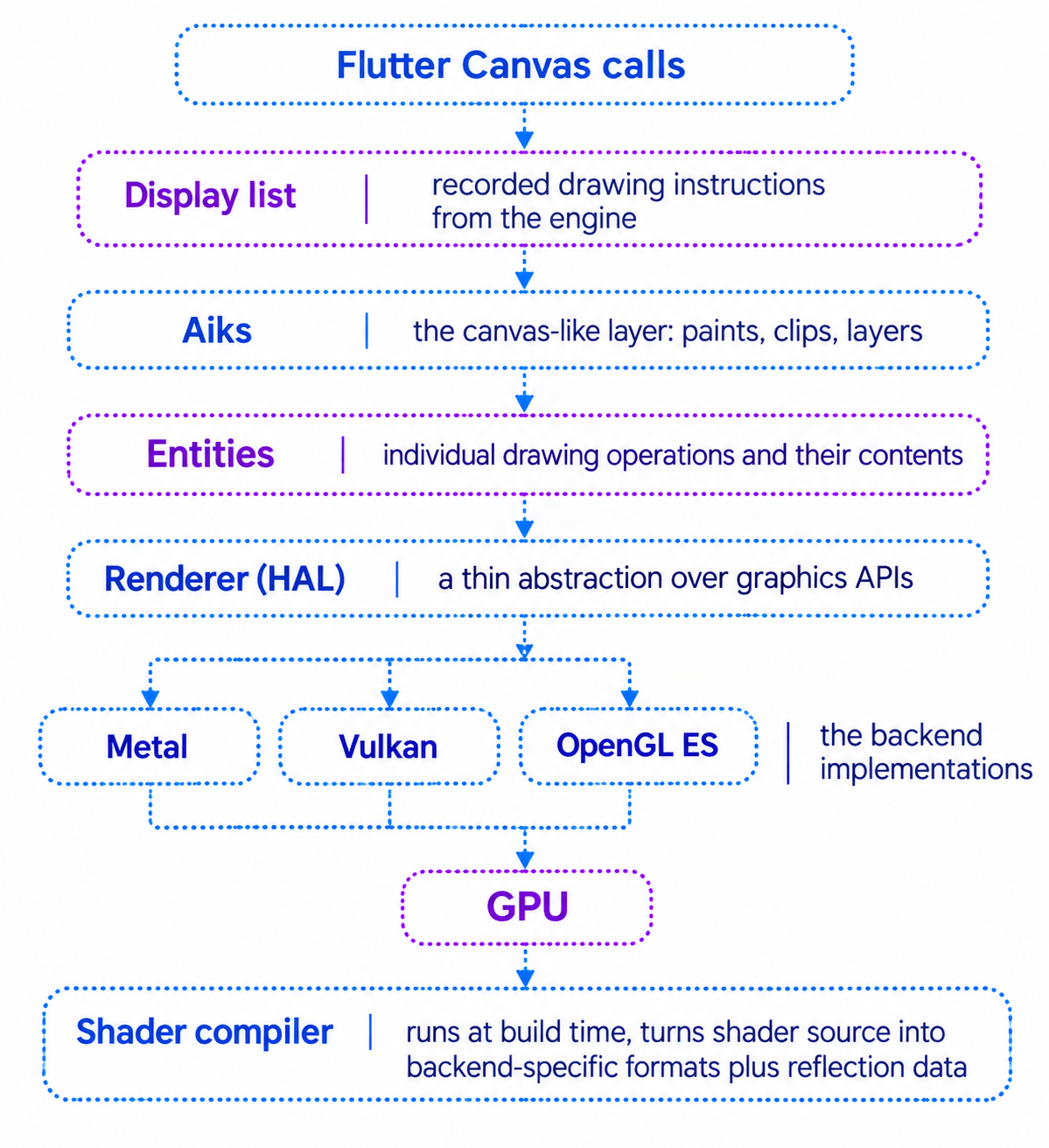
Reading from the top, the engine records your canvas calls, a canvas-like layer interprets paints and layers, and the lower layers turn those into individual drawing operations. The renderer layer is deliberately thin, which is what makes Impeller portable: each backend implements the same small interface, so supporting Vulkan or OpenGL ES alongside Metal does not mean rewriting the layers above.
The separate shader compiler is what delivers the build-time guarantee. It is the tool that processes shader source, converts it to each backend's format, and generates reflection data, all before your app ever runs.
This explains the file paths you saw in earlier log lines. A path containing a backend directory name such as gles points to the OpenGL ES implementation of the renderer layer, while a path under the shell directory points to the platform embedding code that selects a backend. When a message names a file, you now know which layer is complaining.
Best Practices
Verify, Do Not Assume
The most useful habit is to know what renderer and backend your app runs on each device you care about. Read the log line, record it in your device matrix, and revisit it after every Flutter upgrade, because the details of fallback behavior have changed across releases.
Measure in Profile Mode on Real Devices
Never judge rendering performance from debug mode or an emulator. Use flutter run --profile on physical hardware, and read the two graphs of the performance overlay to decide whether the UI thread or the raster thread is the bottleneck before changing anything.
Keep a Low-End Device in Your Lab
The fallback path and the weakest GPUs are where rendering problems concentrate. One older Android phone in your testing rotation catches more renderer problems than any number of flagship devices.
Treat Opt-Outs as Temporary
Use --no-enable-impeller as a diagnostic. If you must ship an opt-out while waiting for a fix, record why, who owns it, and which issue tracks it. Remove it when the fix lands.
Do Not Fear Effects, But Budget Them
Impeller makes the cost of effects predictable, not zero. Heavy blurs, large clipped layers, and stacks of translucent layers still cost GPU time. Add them deliberately and measure screens that combine several.
Report With Evidence
When you find a genuine renderer problem, file it using the template in this guide. A report with a device, a chip, a backend, a comparison, and a minimal reproduction gets attention. A report that says "it looks weird on my phone" does not.
When Impeller Is the Cause and When It Is Not
Not every rendering problem is Impeller's fault, and misattributing them wastes time. Several signals suggest Impeller is involved. The problem appears on a particular device or GPU family and not others. The problem began after a Flutter upgrade with no change to your own code. The problem disappears on Android when you pass --no-enable-impeller. The log shows validation errors from an Impeller source file. Or the problem involves an external texture from a plugin on only one backend.
Other signals suggest the cause lies elsewhere. The problem reproduces identically with Impeller disabled. The UI thread graph is the one that is red, which means your Dart code is slow, not the renderer. The problem appears on every device equally and has a clear link to a state change in your own logic. Or the glitch follows a particular widget configuration that you can explain by reading the widget's documentation, such as an Opacity applied to a large, complex subtree.
When in doubt, run the diagnosis flow from earlier. The two questions at its heart, whether the problem is device or backend specific and whether it exists without Impeller, settle most cases in minutes.
Common Mistakes
Testing Only in Debug Mode or on Emulators
Debug mode adds overhead unrelated to Impeller, and emulators use software or virtualized graphics. Conclusions drawn from either are unreliable. Always confirm with a profile build on a real device.
Trying to Disable Impeller on iOS
Older posts and answers suggest a flag or plist entry to return an iOS app to Skia. On current Flutter versions there is no such option. Use Xcode's tools and minimal reproductions instead.
Forgetting an Old Manifest Opt-Out
An EnableImpeller value of false left over from past debugging silently moves an app to the legacy path on Android. The log message about the app having opted out is the quickest way to detect this, and a project-wide search for the key is the quickest way to fix it.
Leaving SkSL Workarounds in Place
Bundled SkSL files and warm-up flags no longer do anything useful. They clutter build scripts and can mislead new team members into thinking shader warm-up is still part of the process.
Assuming the Backend From the Android Version Alone
The Android version is only one of the conditions for choosing Vulkan. Device support, the Vulkan version, and required extensions also matter, and the engine's behavior for the fallback path has changed between releases. Read the log instead of predicting.
Using gl_FragCoord in Custom Shaders
Flutter's FlutterFragCoord exists to give consistent pixel coordinates across backends. Using the raw built-in can produce flipped or offset results on some paths.
Filing Reports Without Device Details
A report that omits the device model, GPU, API level, Flutter version, and backend line cannot be acted on, because the problem may depend on exactly those details.
Blaming the Renderer for a Slow UI Thread
If the UI graph in the performance overlay is the one missing its deadline, the renderer is not the bottleneck. Fix the build and layout work in your Dart code first.
Mini End-to-End Example: Impeller Lab
Let's build a small application that serves as a rendering laboratory. It paints an animated background with a custom fragment shader, lets you toggle a blur, rounded clips, and opacity layers on and off, and includes a switch for the performance overlay. You can run it on every device in your matrix, read the backend log line, and see how each effect behaves.
The Shader Registration
flutter:
  uses-material-design: true
  shaders:
    - shaders/wave.frag
This is the relevant portion of pubspec.yaml. Place the GLSL file shown earlier at shaders/wave.frag in the project root. The shaders entry is what tells Flutter's build to compile it. The lab uses no packages beyond the Flutter SDK.
The Painter
// lib/wave_painter.dart

import 'dart:ui' as ui;

import 'package:flutter/material.dart';

class WavePainter extends CustomPainter {
  WavePainter({required this.shader, required this.progress});

  final ui.FragmentShader shader;
  final double progress;

  @override
  void paint(Canvas canvas, Size size) {
    shader
      ..setFloat(0, size.width)
      ..setFloat(1, size.height)
      ..setFloat(2, progress * 20);

    canvas.drawRect(Offset.zero & size, Paint()..shader = shader);
  }

  @override
  bool shouldRepaint(WavePainter oldDelegate) {
    return oldDelegate.progress != progress;
  }
}
This painter is the same pattern introduced earlier, with one adjustment. It receives progress, a value from zero to one supplied by an animation controller, and converts it to seconds by multiplying by twenty before passing it to the shader as uTime. Keeping the controller's range at zero to one is the idiomatic way to drive an animation, and the scaling lives in one place.
The Tiles Widget
// lib/lab_tiles.dart

import 'package:flutter/material.dart';

class LabTiles extends StatelessWidget {
  const LabTiles({
    super.key,
    required this.useClip,
    required this.useOpacity,
  });

  final bool useClip;
  final bool useOpacity;

  @override
  Widget build(BuildContext context) {
    final tiles = List<Widget>.generate(24, (index) {
      Widget tile = Container(
        width: 72,
        height: 72,
        color: Colors.primaries[index % Colors.primaries.length],
      );

      if (useClip) {
        tile = ClipRRect(
          borderRadius: BorderRadius.circular(20),
          child: tile,
        );
      }
      if (useOpacity) {
        tile = Opacity(opacity: 0.8, child: tile);
      }
      return tile;
    });

    return Wrap(spacing: 12, runSpacing: 12, children: tiles);
  }
}
The widget produces twenty-four colored squares in a Wrap. List<Widget>.generate builds each tile from its index and cycles through the Material primary colors. The two flags conditionally wrap each tile: ClipRRect adds rounded clipping and Opacity adds a translucent layer. Because each of twenty-four tiles gets its own clip or opacity layer when enabled, toggling these shows you the cost of many small layers, which is a realistic stress pattern for lists and grids. It is its own widget class instead of a private method on the screen so the stage widget stays small and each piece can be read and tested on its own.
The Stage
// lib/lab_stage.dart

import 'dart:ui' as ui;

import 'package:flutter/material.dart';

import 'lab_tiles.dart';
import 'wave_painter.dart';

class LabStage extends StatelessWidget {
  const LabStage({
    super.key,
    required this.progress,
    required this.shader,
    required this.useShader,
    required this.useBlur,
    required this.useClip,
    required this.useOpacity,
  });

  final Animation<double> progress;
  final ui.FragmentShader? shader;
  final bool useShader;
  final bool useBlur;
  final bool useClip;
  final bool useOpacity;

  @override
  Widget build(BuildContext context) {
    final activeShader = shader;

    return Stack(
      fit: StackFit.expand,
      children: [
        if (useShader && activeShader != null)
          AnimatedBuilder(
            animation: progress,
            builder: (context, _) {
              return CustomPaint(
                painter: WavePainter(
                  shader: activeShader,
                  progress: progress.value,
                ),
              );
            },
          )
        else
          const ColoredBox(color: Color(0xFF1B3A5C)),
        Padding(
          padding: const EdgeInsets.all(16),
          child: LabTiles(useClip: useClip, useOpacity: useOpacity),
        ),
        if (useBlur)
          Align(
            alignment: Alignment.bottomCenter,
            child: ClipRect(
              child: BackdropFilter(
                filter: ui.ImageFilter.blur(sigmaX: 14, sigmaY: 14),
                child: const SizedBox(
                  height: 140,
                  width: double.infinity,
                  child: ColoredBox(color: Color(0x1AFFFFFF)),
                ),
              ),
            ),
          ),
      ],
    );
  }
}
The stage layers three things in a Stack. At the bottom is either the animated shader background or a flat color, depending on useShader. The shader is nullable because it loads asynchronously, so the code copies it into a local variable activeShader first. That lets Dart promote the type to non-null inside the condition and avoids a force-unwrap. Above the background sit the tiles. At the top, when useBlur is on, a BackdropFilter blurs whatever is painted beneath a strip along the bottom edge.
AnimatedBuilder listens to the progress animation and rebuilds only the CustomPaint, so the rest of the stage does not rebuild on every frame. ClipRect around the BackdropFilter matters: without it the blur would apply to the whole screen, not just the strip. The strip is deliberately placed over the animated, colorful content, because a blur over a changing background is the demanding case worth observing. The 0x1AFFFFFF color is a white at roughly ten percent opacity, giving the strip a frosted-glass look without calling any deprecated color helper.
The Controls
// lib/lab_controls.dart

import 'package:flutter/material.dart';

class LabControls extends StatelessWidget {
  const LabControls({
    super.key,
    required this.useShader,
    required this.useBlur,
    required this.useClip,
    required this.useOpacity,
    required this.showOverlay,
    required this.onShaderChanged,
    required this.onBlurChanged,
    required this.onClipChanged,
    required this.onOpacityChanged,
    required this.onOverlayChanged,
  });

  final bool useShader;
  final bool useBlur;
  final bool useClip;
  final bool useOpacity;
  final bool showOverlay;
  final ValueChanged<bool> onShaderChanged;
  final ValueChanged<bool> onBlurChanged;
  final ValueChanged<bool> onClipChanged;
  final ValueChanged<bool> onOpacityChanged;
  final ValueChanged<bool> onOverlayChanged;

  @override
  Widget build(BuildContext context) {
    return Column(
      mainAxisSize: MainAxisSize.min,
      children: [
        SwitchListTile(
          dense: true,
          title: const Text('Animated shader background'),
          value: useShader,
          onChanged: onShaderChanged,
        ),
        SwitchListTile(
          dense: true,
          title: const Text('Backdrop blur'),
          value: useBlur,
          onChanged: onBlurChanged,
        ),
        SwitchListTile(
          dense: true,
          title: const Text('Rounded clips on tiles'),
          value: useClip,
          onChanged: onClipChanged,
        ),
        SwitchListTile(
          dense: true,
          title: const Text('Opacity layers on tiles'),
          value: useOpacity,
          onChanged: onOpacityChanged,
        ),
        SwitchListTile(
          dense: true,
          title: const Text('Performance overlay'),
          value: showOverlay,
          onChanged: onOverlayChanged,
        ),
      ],
    );
  }
}
The controls widget is purely presentational. It receives the current value of every switch and a callback for each, and owns no state. That separation keeps the state in one place, in the screen, and makes this widget trivial to test. SwitchListTile with dense: true keeps five switches compact so the stage keeps most of the screen. MainAxisSize.min lets the column take only the height it needs.
The Screen and Entry Point
// lib/main.dart

import 'dart:ui' as ui;

import 'package:flutter/material.dart';

import 'lab_controls.dart';
import 'lab_stage.dart';
import 'wave_painter.dart';

final ValueNotifier<bool> overlayNotifier = ValueNotifier<bool>(false);

void main() {
  runApp(const ImpellerLabApp());
}

class ImpellerLabApp extends StatelessWidget {
  const ImpellerLabApp({super.key});

  @override
  Widget build(BuildContext context) {
    return ValueListenableBuilder<bool>(
      valueListenable: overlayNotifier,
      builder: (context, showOverlay, _) {
        return MaterialApp(
          title: 'Impeller Lab',
          debugShowCheckedModeBanner: false,
          showPerformanceOverlay: showOverlay,
          theme: ThemeData(
            colorScheme: ColorScheme.fromSeed(seedColor: Colors.indigo),
            useMaterial3: true,
          ),
          home: const ImpellerLabScreen(),
        );
      },
    );
  }
}

class ImpellerLabScreen extends StatefulWidget {
  const ImpellerLabScreen({super.key});

  @override
  State<ImpellerLabScreen> createState() => _ImpellerLabScreenState();
}

class _ImpellerLabScreenState extends State<ImpellerLabScreen>
    with SingleTickerProviderStateMixin {
  late final AnimationController _controller;
  ui.FragmentShader? _shader;

  bool _useShader = true;
  bool _useBlur = false;
  bool _useClip = false;
  bool _useOpacity = false;

  @override
  void initState() {
    super.initState();
    _controller = AnimationController(
      vsync: this,
      duration: const Duration(seconds: 20),
    )..repeat();
    _loadShader();
  }

  Future<void> _loadShader() async {
    final program = await ui.FragmentProgram.fromAsset('shaders/wave.frag');
    if (!mounted) return;
    setState(() => _shader = program.fragmentShader());
  }

  @override
  void dispose() {
    _controller.dispose();
    super.dispose();
  }

  @override
  Widget build(BuildContext context) {
    return Scaffold(
      appBar: AppBar(title: const Text('Impeller Lab')),
      body: Column(
        children: [
          Expanded(
            child: LabStage(
              progress: _controller,
              shader: _shader,
              useShader: _useShader,
              useBlur: _useBlur,
              useClip: _useClip,
              useOpacity: _useOpacity,
            ),
          ),
          LabControls(
            useShader: _useShader,
            useBlur: _useBlur,
            useClip: _useClip,
            useOpacity: _useOpacity,
            showOverlay: overlayNotifier.value,
            onShaderChanged: (value) => setState(() => _useShader = value),
            onBlurChanged: (value) => setState(() => _useBlur = value),
            onClipChanged: (value) => setState(() => _useClip = value),
            onOpacityChanged: (value) => setState(() => _useOpacity = value),
            onOverlayChanged: (value) {
              overlayNotifier.value = value;
              setState(() {});
            },
          ),
        ],
      ),
    );
  }
}
The overlayNotifier is a top-level ValueNotifier because showPerformanceOverlay is a property of MaterialApp, which sits above the screen. Wrapping MaterialApp in a ValueListenableBuilder rebuilds the app when the notifier changes, which is how a switch deep in the tree can toggle an app-level setting without a state management package.
The screen's state class owns the animation controller and the loaded shader. SingleTickerProviderStateMixin supplies the ticker the controller needs. The controller runs for twenty seconds and repeats, producing the zero to one progress value the painter expects. _loadShader loads the compiled shader asynchronously and checks mounted before calling setState, because the screen could be disposed while the asset loads. dispose releases the controller, which is required to prevent a leak.
The four effect flags are plain booleans updated with setState. The overlay switch writes to the notifier and also calls setState, so that the switch's displayed value, which reads the notifier, refreshes immediately.
Using the Lab
Run the lab in profile mode on a physical device and read the backend line.
flutter run --profile -d <device-id>
adb logcat | grep -i impeller
Start with everything off except the shader and note the frame graphs by turning on the performance overlay. Then turn on one effect at a time and watch the raster graph. Compare the same sequence on a modern Android phone, an older Android phone, and an iPhone. Differences in how the effects cost you across devices, together with the backend line from each, give you a concrete picture of how Impeller behaves across the backend matrix. On Android, repeat the whole sequence with --no-enable-impeller to see the difference with the legacy path directly.
Conclusion
Impeller is the part of Flutter that decides how smooth your app feels, and for most of Flutter's history it was easy to ignore. That is no longer true. It is the only renderer on iOS and the default on supported Android devices, and the questions that matter in production, which backend a device uses, whether a glitch is the renderer's fault, and what to tell the Flutter team, all require understanding it.
The central design decision is simple and worth remembering: do the expensive work before the app runs. By compiling shaders and building pipelines at engine build time, Impeller removed the first-run stutter that shaped Flutter's reputation for jank, and replaced it with performance you can predict. The cost of an effect did not disappear, but it stopped hiding.
The practical skills that follow from that understanding are small and learnable. Read the backend log line, because it replaces speculation with evidence. Profile on real devices in profile mode, and read both graphs of the performance overlay before changing anything. Use the opt-out flag on Android as a diagnostic, never as a plan, and know that iOS offers no such switch. Collect the device, GPU, API level, Flutter version, and backend for any report. Bisect complex screens with compile-time flags until the responsible effect is isolated. Keep an older phone in your device lab so the fallback path gets exercised, and let your CI matrix make the backend visible after every Flutter upgrade.
The migration itself, for most teams, is a cleanup: remove the SkSL workarounds, audit for forgotten opt-outs, and verify the backend on the devices that matter. The framework you write against did not change, which is exactly what a rendering engine swap should feel like.
The documentation around fallback behavior has shifted across releases, and desktop support is moving quickly, so treat this guide as a foundation and confirm version-specific details against the release notes for the Flutter version you ship. What will not go out of date is the method: verify the backend, isolate the effect, compare with and without Impeller where you can, and report with evidence. With that method, the black box under your widgets stops being a mystery.
References
Impeller Rendering Engine (Flutter Documentation): The official page describing Impeller's objectives, platform availability, how to disable it on Android, how to enable it on macOS, the bug reporting guidance, and links to the Xcode GPU capture and Metal validation guides.
https://docs.flutter.dev/perf/impeller
Impeller on Android, Backend Selection (Flutter Engine Documentation): The engine's own description of how Impeller prefers Vulkan and falls back to OpenGL ES, including the Android API level and Vulkan version requirements, platform view support, and texture notes.
https://github.com/flutter/engine/blob/main/impeller/docs/android.md
Android Rendering Breaks When Vulkan Falls Back to OpenGL ES (Flutter Issue 179268): A real-world bug report with device details, GPU information, a version regression comparison, and backend log lines, used in this handbook as an example of a well-evidenced report.
https://github.com/flutter/flutter/issues/179268
Impeller Validation Messages on the OpenGL ES Backend (Flutter Issue 181483): An example of what Impeller validation errors look like in the log, including the ImpellerValidationBreak hint.
https://github.com/flutter/flutter/issues/181483
Enabling Validations by Default in Debug Vulkan Builds (Flutter Issue 134679): The tracking issue for loading Vulkan validation layers by default in debug runtime modes.
https://github.com/flutter/flutter/issues/134679
What's New in Flutter 3.47 (Flutter Blog): The release announcement covering rendering changes alongside the other changes in that release, useful for confirming desktop behavior for your exact Flutter version.
https://flutter.dev/blog/whats-new-in-flutter-3-47
Decoupling Material and Cupertino in Flutter (freeCodeCamp): The earlier article on the Material and Cupertino decoupling, which provides background for the wider set of changes in the Flutter 3.47 release.
https://www.freecodecamp.org/news/decoupling-material-and-cupertino-in-flutter/
Flutter Issue Tracker (GitHub): Where to file Impeller issues, using the [Impeller] title prefix and the information checklist described in this handbook.
https://github.com/flutter/flutter/issues
About the author
- Atuoha Anthony is a Senior Mobile Software Engineer with a primary focus on Flutter and Dart, alongside Kotlin, Swift, and AI-powered applications.
Comments
Join the discussionNo comments yet. Be the first to comment.


